All user actions that have been sent for review are visible in the review dashboard. The details in the dashboard will change depending on the user. A reviewer will be able to view all actions that need review along with the icons to approve/reject/re-assign/abort the actions whereas the user who has made the change and sent it for review can view only the history, that is, the current status of the action sent for review.
To view the review dashboard:
Hover over to upper-left corner and the following menu is displayed as shown in the following figure.
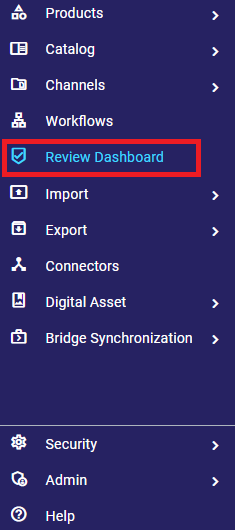
Click Review Dashboard and the following screen appears.
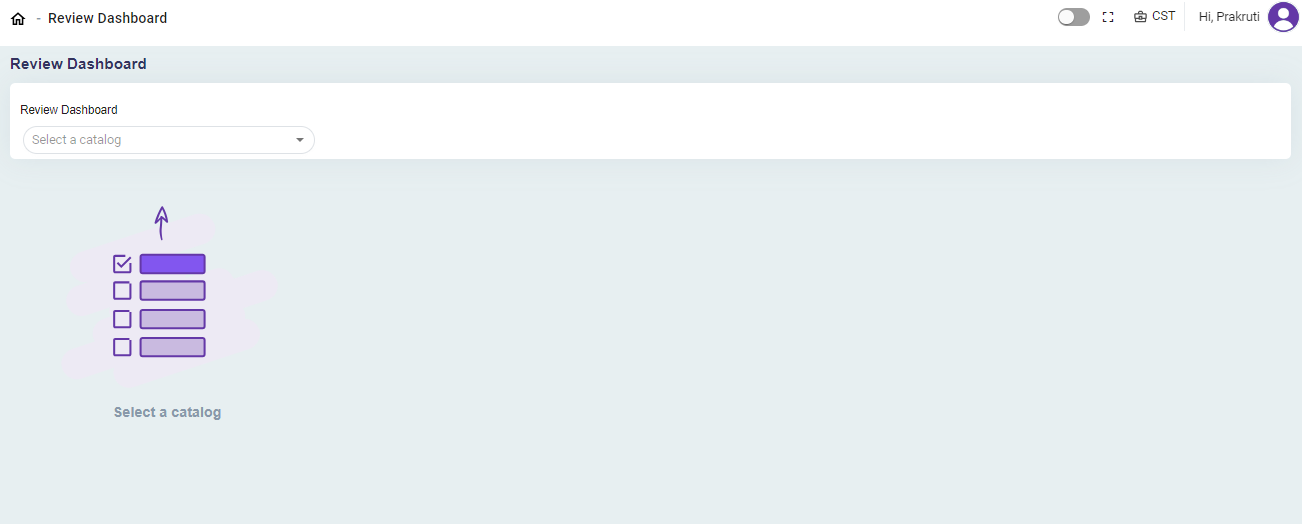
Depending on the catalog for which you need to view the status or perform the review (in case of a reviewer), select the catalog from the drop-down list. Also, a direct link of the last visited catalog is displayed. In case you need to view the dashboard for this catalog, click it directly. The following screen appears.
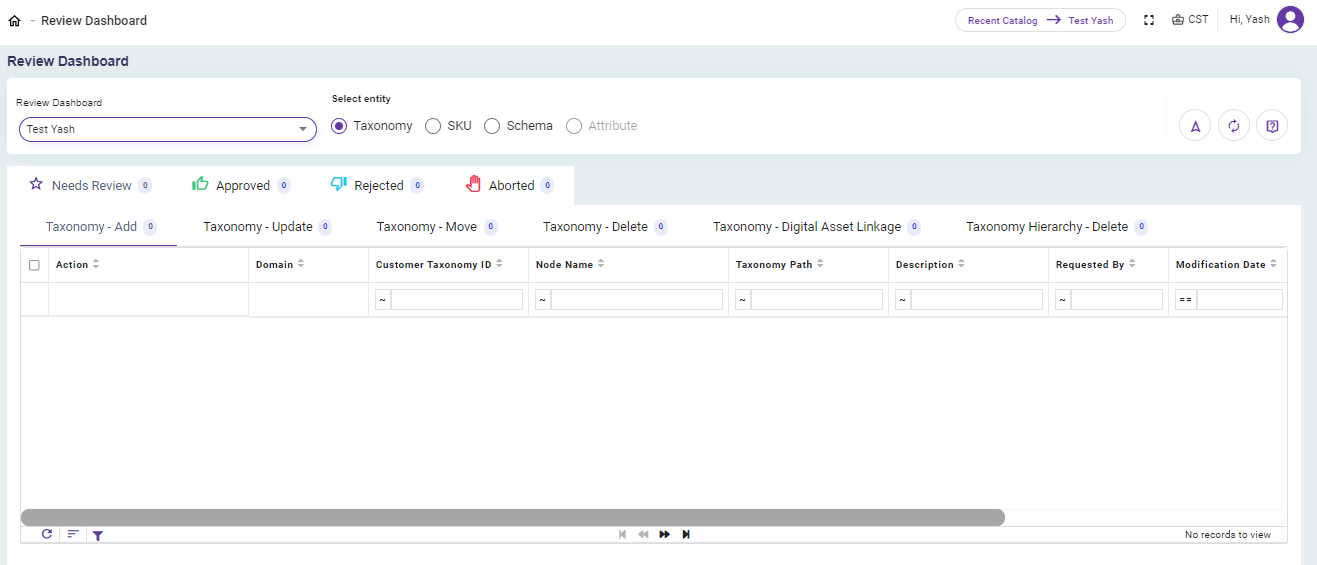
The following table lists the various fields / icons along with its description that are visible on the review dashboard screen.
Fields | Description |
|---|---|
Select catalog | The catalog selected is displayed by default. However, you can select any catalog from the drop-down list and its dashboard is displayed. |
Select entity | By default, Taxonomy is selected. However, you can select any entity to view the status of the user actions for the respective entity. Depending on the entity selected, the user actions and its status is displayed. |
Configure Catalog | Click the Configure Catalog |
Refresh | Click the Refresh |
View Help Section | Click the View Help Section
|
Needs review | This tab displays the user actions that have been sent for review. The number indicates the number of all user actions sent for review.
|
Approved | This tab displays all user actions that have been approved by the reviewer. The number indicates the number of user actions approved.
|
Rejected | This tab displays all user actions that have been rejected by the reviewer. The number indicates the number of user actions rejected.
|
Aborted | This tab displays all user actions that have been aborted by the reviewer. The number indicates the number of user actions aborted.
|
Select entity – Click Taxonomy to view taxonomy related actions | |
Taxonomy - Add | This tab displays all requests related to adding a new node. A detailed description about the various fields in this tab are provided here.
|
Taxonomy - Update | This tab displays all requests related to editing a node name. A detailed description about the various fields in this tab are provided here.
|
Taxonomy - Move | This tab displays all requests related to moving a node to a different location in the hierarchy. A detailed description about the various fields in this tab are provided here.
|
Taxonomy - Delete | This tab displays all requests related to deleting a node. A detailed description about the various fields in this tab are provided here.
|
Taxonomy – Digital Asset Linkage | This tab displays all requests related to linking / delinking an asset to / from a node. A detailed description about the various fields in this tab are provided here.
|
Taxonomy Hierarchy - Delete | This tab displays all requests related to deleting a taxonomy hierarchy. A detailed description about the various fields in this tab are provided here.
|
Select entity – Click SKU to view SKU related actions | |
SKU Authoring – Attribute Values | This tab displays all requests related to SKU attribute value (that is, adding / editing / deleting value) along with the number of requests. A detailed description about the various fields in this tab are provided here.
|
SKU Authoring – Digital Asset Linkage | This tab displays all requests related to linking /delinking a digital asset to/from a SKU along with the number of requests. A detailed description about the various fields in this tab are provided here.
|
SKU Authoring – Classification | This tab displays all requests related to SKU classification, that is, moving/ mirroring a SKU from one node to another along with the number of requests. A detailed description about the various fields in this tab are provided here.
|
SKU Authoring – Add/ Delete SKU | This tab displays all requests related to adding a new SKU or deleting an existing SKU along with the number of requests. A detailed description about the various fields in this tab are provided here.
|
Select entity – Click Schema to view schema related actions | |
Schema - Add | This tab displays all requests related to adding a new schema attribute along with the number of requests. A detailed description about the various fields in this tab are provided here.
|
Schema - Update | This tab displays all requests related to updating an existing schema attribute along with the number of requests. A detailed description about the various fields in this tab are provided here.
|
Schema - Delete | This tab displays all requests related to deleting an existing schema attribute along with the number of requests. A detailed description about the various fields in this tab are provided here.
|
 icon to go back to the recently viewed catalog.
 icon to load the latest details on the dashboard.
 icon to view the description of what various icons used in the dashboard indicate as shown below.
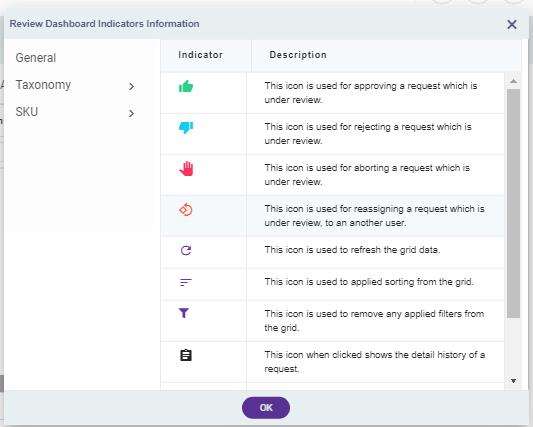






The content of the Review dashboard changes based on the actions assigned as well as the privileges granted.
A reviewer is assigned the task of reviewing the user action assigned. Hence, the Review dashboard for a reviewer will display options to approve / reject / abort / re-assign the request as shown below.
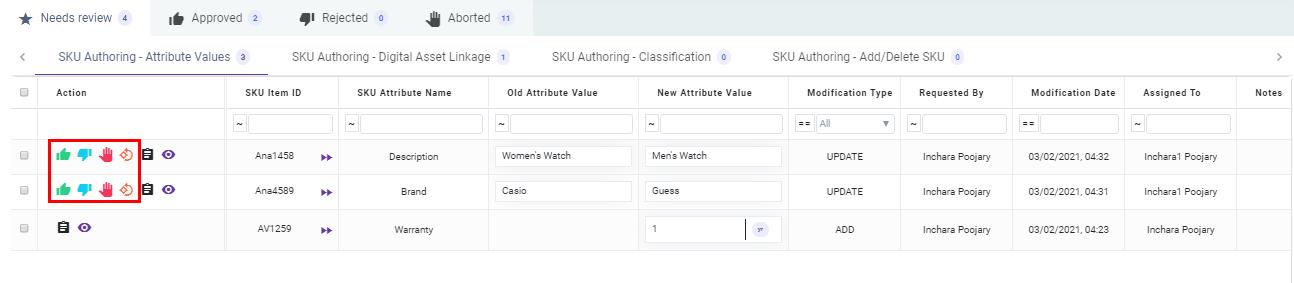
For a user working on the catalog and assigning the changes for review to a reviewer, the dashboard will only display details of actions assigned as shown below.

Viewing Details of Fields in Taxonomy
There are multiple user actions that can be reviewed under Taxonomy depending on the action to be performed which are classified into 5 main categories. Let us understand the various information that is displayed in each of these categories:
Taxonomy - Add
Here, you can view details of all requests related to adding a new node. The following table lists all the fields displayed in this tab along with its description.
Fields | Description | Displayed In |
|---|---|---|
Action | Displays the icons of all actions that can be performed. |
|
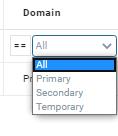
Hierarchy | Displays the name of the hierarchy in which the request to add a node is raised. If there are multiple hierarchies in the catalog, the drop-down list will display all as shown below.
However, depending on the hierarchy in which the node is to be added, the hierarchy is displayed accordingly. |
|
Customer Taxonomy ID | Displays the customer specified unique ID assigned to the taxonomy node. |
|
Node Name | Displays the name of the node to be added which is under review. Click the Locate this Node in Catalog |
|
Taxonomy Path | Displays the taxonomy path where the node is to be added in the catalog. |
|
Description | Displays the customer specified description added for the taxonomy node. |
|
Requested By | Displays the name of the user who has sent the action for review. |
|
Modification Date | Displays the latest date when the action assigned for review was modified. |
|
Assigned To | Displays the name of the reviewer who has been assigned the task for review. Note: This field is not displayed in Approved and Aborted tabs as these are terminal states and action once approved or aborted needs no further action. |
|
Notes | Displays any comments provided during the review process. If a user action is aborted by the system, the relevant information is displayed here as well. |
|
 icon next to the node name to navigate to the node in the catalog.
Taxonomy - Update
Here, you can view details of all requests related to editing the name of a node. The following table lists all the fields displayed in this tab along with its description.
Fields | Description | Displayed In |
|---|---|---|
Action | Displays the icons of all actions that can be performed. |
|
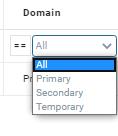
Hierarchy | Displays the name of the hierarchy in which the request to edit a node name is raised. If there are multiple hierarchies in the catalog, the drop-down list will display all as shown below.
However, depending on the hierarchy in which the node name is to be edited, the hierarchy is displayed accordingly. |
|
Old Customer Taxonomy ID | Displays the old customer specified unique ID assigned to the taxonomy node before the review is performed on it. |
|
New Customer Taxonomy ID | Displays the new customer specified unique ID assigned to the taxonomy node. |
|
Old Node Name | Displays the old name of the node that exists in the catalog before the review is performed on it. |
|
New Node Name | Displays the new name of the node that is requested for review. |
|
Taxonomy Path | Displays the taxonomy path where the node to be edited exists in the catalog. |
|
Old Description | Displays the old customer specified description added for the taxonomy node before the review is performed on it. |
Aborted tab |
New Description | Displays the new customer specified description added for the taxonomy node. |
|
Requested By | Displays the name of the user who has sent the action for review. |
|
Modification Date | Displays the latest date when the action assigned for review was modified. |
|
Assigned To | Displays the name of the reviewer who has been assigned the task for review. Note: This field is not displayed in Approved and Aborted tabs as these are terminal states and action once approved or aborted needs no further action. |
|
Notes | Displays any comments provided during the review process. If a user action is aborted by the system, the relevant information is displayed here as well. |
|
Taxonomy - Move
Here, you can view details of all requests related to moving a node to a different location in the hierarchy. The following table lists all the fields displayed in this tab along with its description.
Fields | Description | Displayed In |
|---|---|---|
Action | Displays the icons of all actions that can be performed. |
|
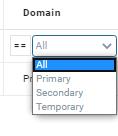
Hierarchy | Displays the name of the hierarchy in which the request to move a node is raised. If there are multiple hierarchies in the catalog, the drop-down list will display all as shown below.
However, depending on the hierarchy in which the node is being moved, the hierarchy is displayed accordingly. |
|
Customer Taxonomy ID | Displays the customer specified unique ID assigned to the taxonomy node. |
|
Node Name | Displays the name of the node to be moved which is under review. Click the Locate this Node in Catalog |
|
Old Taxonomy Path | Displays the old path where the node exists in the catalog before the review is performed on it. |
|
New Parent Taxonomy Path | Displays the new path where the node will be moved that is requested for review. |
|
Description | Displays the customer specified description added for the taxonomy node. |
|
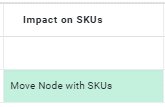
Impact on SKUs | Displays the status of the SKUs based on the option selected while moving the node. For example, if the node is to be moved with SKUs, it will be displayed accordingly as shown below.
|
|
Target Taxonomy Path for SKUs | Displays the taxonomy path where the SKUs will be moved based on the option selected while moving a node. Note: If the node is being moved without the SKUs and the SKUs will be deleted, this field will be blank. |
|
Requested By | Displays the name of the user who has sent the action for review. |
|
Modification Date | Displays the latest date when the action assigned for review was modified. |
|
Assigned To | Displays the name of the reviewer who has been assigned the task for review. Note: This field is not displayed in Approved and Aborted tabs as these are terminal states and action once approved or aborted needs no further action. |
|
Notes | Displays any comments provided during the review process. If a user action is aborted by the system, the relevant information is displayed here as well. |
|
 icon next to the node name to navigate to the node in the catalog.
Taxonomy - Delete
Here, you can view details of all requests related to deleting a node. The following table lists all the fields displayed in this tab along with its description.
Fields | Description | Displayed In |
|---|---|---|
Action | Displays the icons of all actions that can be performed. |
|
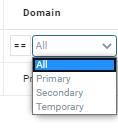
Hierarchy | Displays the name of the hierarchy in which the request to delete a node is raised. If there are multiple hierarchies in the catalog, the drop-down list will display all as shown below.
However, depending on the hierarchy in which the node is being deleted, the hierarchy is displayed accordingly. |
|
Customer Taxonomy ID | Displays the customer specified unique ID assigned to the taxonomy node. |
|
Node Name | Displays the name of the node to be deleted which is under review. Click the Locate this Node in Catalog |
|
Taxonomy Path | Displays the path where the node exists in the catalog before the review is performed on it. |
|
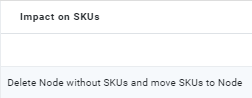
Impact on SKUs | Displays the status of the SKUs based on the option selected while deleting the node. For example, if the node is to be deleted without SKUs, it will be displayed accordingly as shown below.
|
|
Target Taxonomy Path for SKUs | Displays the taxonomy path where the SKUs will be moved based on the option selected while deleting a node. Note: If the node is being deleted along with the SKUs, this field will be blank. |
|
Requested By | Displays the name of the user who has sent the action for review. |
|
Modification Date | Displays the latest date when the action assigned for review was modified. |
|
Assigned To | Displays the name of the reviewer who has been assigned the task for review. Note: This field is not displayed in Approved and Aborted tabs as these are terminal states and action once approved or aborted needs no further action. |
|
Notes | Displays any comments provided during the review process. If a user action is aborted by the system, the relevant information is displayed here as well. |
|
 icon next to the node name to navigate to the node in the catalog.
Taxonomy – Digital Asset Linkage
Here, you can view details of all requests related to linking / delinking an asset to / from a node. The following table lists all the fields displayed in this tab along with its description.
Fields | Description | Displayed In |
|---|---|---|
Action | Displays the icons of all actions that can be performed. |
|
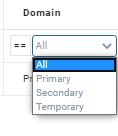
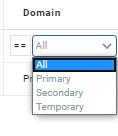
Hierarchy | Displays the name of the hierarchy in which the request to link / delink assets to a node is raised. If there are multiple hierarchies in the catalog, the drop-down list will display all as shown below.
However, depending on the hierarchy in which the node is being linked / delinked, the hierarchy is displayed accordingly. |
|
Customer Taxonomy ID | Displays the customer specified unique ID assigned to the taxonomy node. |
|
Node Name | Displays the name of the node to be linked / delinked which is under review. Click the Locate this Node in Catalog |
|
Taxonomy Path | Displays the path where the node exists in the catalog before the review is performed on it. |
|
Digital Asset Name | Displays the name of the asset to be linked/delinked which is under review. An icon of the asset is present next to the name. When you hover the mouse, you can view the asset to be linked/delinked. |
|
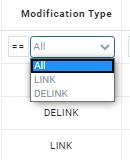
Modification Type | Displays the type of modification requested for assets. In case of assets, you can link/delink them to/from a node. Hence, all requests received are categorized in these 2 types as shown below.
Note: In case of a delink request, you cannot reject the request. |
|
Requested By | Displays the name of the user who has sent the action for review. |
|
Modification Date | Displays the latest date when the action assigned for review was modified. |
|
Assigned To | Displays the name of the reviewer who has been assigned the task for review. Note: This field is not displayed in Approved and Aborted tabs as these are terminal states and action once approved or aborted needs no further action. |
|
Notes | Displays any comments provided during the review process. If a user action is aborted by the system, the relevant information is displayed here as well. |
|
 icon next to the node name to navigate to the node in the catalog.
Taxonomy Hierarchy- Delete
Here, you can view details of all requests related to deleting a taxonomy hierarchy. The following table lists all the fields displayed in this tab along with its description.
Fields | Description | Displayed In |
|---|---|---|
Action | Displays the icons of all actions that can be performed. |
|
Hierarchy | Displays the name of the hierarchy in which the request to delete the node hierarchy is raised. If there are multiple hierarchies in the catalog, the drop-down list will display all as shown below.
However, depending on the hierarchy in which the hierarchy is being deleted, the hierarchy is displayed accordingly. |
|
Hierarchy Root Customer Taxonomy ID | Displays the customer specified unique ID assigned to the root taxonomy node which has been selected for deletion. |
|
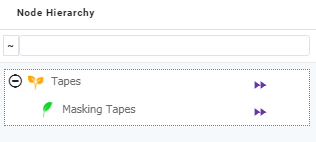
Node Hierarchy | Displays the entire hierarchy of the nodes to be deleted which is under review. Click the Locate this Node in Catalog
|
|
Taxonomy Path | Displays the path where the node exists in the catalog before the review is performed on it. |
|
Impact on SKUs | Displays the status of the SKUs based on the option selected while deleting the nodes. For example, if the nodes are to be deleted without SKUs and move them to the node, it will be displayed accordingly as shown below.
|
|
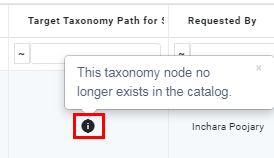
Target Taxonomy Path for SKUs | Displays the taxonomy path where the SKUs will be moved based on the option selected while deleting the hierarchy. Note: If the nodes are being deleted along with the SKUs, this field will be blank. Also, if the node where the SKUs are being moved is removed before the review is done, an icon indicating the same is displayed as shown below.
|
|
Requested By | Displays the name of the user who has sent the action for review. |
|
Modification Date | Displays the latest date when the action assigned for review was modified. |
|
Assigned To | Displays the name of the reviewer who has been assigned the task for review. Note: This field is not displayed in Approved and Aborted tabs as these are terminal states and action once approved or aborted needs no further action. |
|
Notes | Displays any comments provided during the review process. If a user action is aborted by the system, the relevant information is displayed here as well. |
|
 icon next to the nodes listed to navigate to the specific node in the catalog.

Viewing Details of Fields in SKU Authoring
There are multiple user actions that can be reviewed under SKU Authoring depending on the action to be performed which are classified into 4 main categories. Let us understand the various information that is displayed in each of these categories:
SKU Authoring - Attribute Values
Here, you can view details of all requests related to SKU attribute value (that is, adding / editing / deleting value). The following table lists all the fields displayed in this tab along with its description.
Fields | Description | Displayed In |
|---|---|---|
Action | Displays the icons of all actions that can be performed. |
|
SKU Item ID | Displays the SKU ID which is under review. Click the Locate this SKU in Catalog |
|
SKU Attribute Name | Displays the name of the attribute that is sent for review. You can also sort the name in ascending and descending order alphabetically by clicking the |
|
Old Attribute Value | Displays the old value of the attribute that exists in the catalog before the review is performed on it. Note: In case of a new value to be added, this field will be blank. However, in case of a value to be updated/deleted, this field will have values as an existing value will be updated/deleted. |
|
New Attribute Value | Displays the new value of the attribute that is requested for review. Note: In case of a value to be deleted, this field will be blank as an existing value will be deleted. However, in case of a value to be updated/added, this field will have values as an existing value will be updated or a new value will be added. |
|
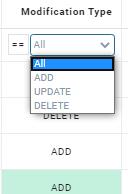
Modification Type | Displays the type of modification requested for an attribute value. In case of attribute values, you can add a new value, update an existing value or delete the value. Hence, all requests received are categorized in these 3 types as shown below.
|
|
Requested By | Displays the name of the user who has sent the action for review. |
|
Modification Date | Displays the latest date when the action assigned for review was modified. |
|
Assigned To | Displays the name of the reviewer who has been assigned the task for review. Note: This field is not displayed in Approved and Aborted tabs as these are terminal states and action once approved or aborted needs no further action. |
|
Notes | Displays any comments provided during the review process. If a user action is aborted by the system, the relevant information is displayed here as well. |
|
 icon next to the ID to navigate to the SKU in the catalog.
 icon next to the field.
SKU Authoring – Digital Asset Linkage
Here, you can view details of all requests related to SKU DA linkage (that is, linking / delinking assets to/from a SKU). The following table lists all the fields displayed in this tab along with its description.
Fields | Description | Displayed In |
|---|---|---|
Action | Displays the icons of all actions that can be performed. |
|
SKU Item ID | Displays the SKU ID which is under review. Click the Locate this SKU in Catalog |
|
Digital Asset Name | Displays the name of the asset to be linked/delinked which is under review. An icon of the asset is present next to the name. When you hover the mouse, you can view the asset to be linked/delinked. |
|
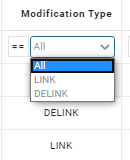
Modification Type | Displays the type of modification requested for assets. In case of assets, you can link/delink them to/from a SKU. Hence, all requests received are categorized in these 2 types as shown below.
Note: In case of a delink request, you cannot reject the request. |
|
Requested By | Displays the name of the user who has sent the action for review. |
|
Modification Date | Displays the latest date when the action assigned for review was modified. |
|
Assigned To | Displays the name of the reviewer who has been assigned the task for review. Note: This field is not displayed in Approved and Aborted tabs as these are terminal states and action once approved or aborted needs no further action. |
|
Notes | Displays any comments provided during the review process. If a user action is aborted by the system, the relevant information is displayed here as well. |
|
 icon next to the ID to navigate to the SKU in the catalog.
SKU Authoring - Classification
Here, you can view details of all requests related to SKU classification (that is, moving SKUs to a node within the same or different hierarchy as well as mirroring eligible SKUs). The following table lists all the fields displayed in this tab along with its description.
Fields | Description | Displayed In |
|---|---|---|
Action | Displays the icons of all actions that can be performed. |
|
SKU Item ID | Displays the SKU ID which is under review. Click the Locate this SKU in Catalog |
|
Old Hierarchy Name | Displays the old hierarchy name where the SKU exists before the review is performed on it. |
|
Old Taxonomy Path | Displays the old taxonomy path where the SKU exists before the review is performed on it. |
|
New Hierarchy Name | Displays the new hierarchy name where the SKU will be placed after the review is performed. |
|
New Taxonomy Path | Displays the new taxonomy path where the SKU will be placed after the review is performed. |
|
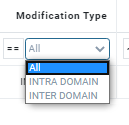
Modification Type | Displays the type of modification requested for a SKU. In this case, SKUs can be moved from one node to another within the same hierarchy or between hierarchies as well. Thus, movement of SKUs within the same hierarchy is referred as INTRA whereas movement of SKUs between different hierarchies is referred as INTER. Hence, all requests received are categorized in these 2 types as shown below.
|
|
Requested By | Displays the name of the user who has sent the action for review. |
|
Modification Date | Displays the latest date when the action assigned for review was modified. |
|
Assigned To | Displays the name of the reviewer who has been assigned the task for review. Note: This field is not displayed in Approved and Aborted tabs as these are terminal states and action once approved or aborted needs no further action. |
|
Notes | Displays any comments provided during the review process. If a user action is aborted by the system, the relevant information is displayed here as well. |
|
 icon next to the ID to navigate to the SKU in the catalog.
SKU Authoring – Add/Delete SKU
Here, you can view details of all requests related to SKU add/delete (that is, adding a new SKU or deleting an existing SKU). The following table lists all the fields displayed in this tab along with its description.
Fields | Description | Displayed In |
|---|---|---|
Action | Displays the icons of all actions that can be performed. |
|
SKU Item ID | Displays the SKU ID which is under review. Click the Locate this SKU in Catalog |
|
Taxonomy Path | Displays the taxonomy path, that is, the exact location of the node where the SKU is to be added or deleted. |
|
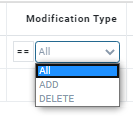
Modification Type | Displays the type of modification requested for SKUs. In this case, you can either add new SKUs or delete existing SKUs. Hence, all requests received are categorized in these 2 types as shown below.
|
|
Requested By | Displays the name of the user who has sent the action for review. |
|
Modification Date | Displays the latest date when the action assigned for review was modified. |
|
Assigned To | Displays the name of the reviewer who has been assigned the task for review. Note: This field is not displayed in Approved and Aborted tabs as these are terminal states and action once approved or aborted needs no further action. |
|
Notes | Displays any comments provided during the review process. If a user action is aborted by the system, the relevant information is displayed here as well. |
|
 icon next to the ID to navigate to the SKU in the catalog.
Viewing Details of Fields in Schema
There are multiple user actions that can be reviewed under schema depending on the action to be performed which are classified into 3 main categories. Let us understand the various information that is displayed in each of these categories:
Schema - Add
Here, you can view details of all requests related to adding a new schema. The following table lists all the fields displayed in this tab along with its description.
Fields | Description | Displayed In |
|---|---|---|
Action | Displays the icons of all actions that can be performed. |
|
Customer Attribute Id | Displays the customer specified unique ID assigned to the attribute. |
|
Hierarchy | Displays the name of the hierarchy in which the request to add a schema is raised. If there are multiple hierarchies in the catalog, the drop-down list will display all as shown below.
However, depending on the hierarchy in which the node is to be added, the hierarchy is displayed accordingly. |
|
Taxonomy Path | Displays the taxonomy path where the schema is to be added in the catalog. |
|
Attribute Name | Displays the name of the schema attribute to be added which is under review. Click the Locate this Schema Attribute in Catalog |
|
Description | Displays the customer specified description added for the attribute. |
|
UoM(s) | Displays the UoM details, if added while creating a schema attribute. |
|
LoV(s) | Displays the List of Values (LoVs), if added while creating a schema attribute. |
|
Schema Constraints | Displays the schema constraints, if enabled while creating a schema attribute. |
|
Meta Tag | Displays the meta tags, if associated with the attribute while creating a schema attribute. |
|
Meta Attributes | Displays the meta attributes, if associated with the attribute while creating a schema attribute. | |
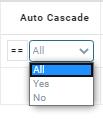
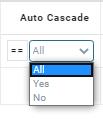
Auto Cascade | Displays the value as Yes if the toggle is turned on for an attribute that needs to be inherited by all the nodes in the hierarchy else No if the toggle is off, while creating a schema attribute as shown below.
Note: Schema attributes can be created in child nodes if the auto cascade option is enabled for schema attributes in the parent node. In such cases, no individual records will be created in the review dashboard for schema attributes added in child nodes due to auto cascade. If the parent node under review is accepted, the child nodes under that parent will automatically be added. |
|
Requested By | Displays the name of the user who has sent the action for review. |
|
Modification Date | Displays the latest date when the action assigned for review was modified. |
|
Assigned To | Displays the name of the reviewer who has been assigned the task for review. Note: This field is not displayed in Approved and Aborted tabs as these are terminal states and action once approved or aborted needs no further action. |
|
Notes | Displays any comments provided during the review process. If a user action is aborted by the system, the relevant information is displayed here as well. |
|
 icon next to the attribute name to navigate to the schema attribute in the catalog.
Schema - Update
Here, you can view details of all requests related to editing the existing schema attributes. The following table lists all the fields displayed in this tab along with its description.
Fields | Description | Displayed In |
|---|---|---|
Action | Displays the icons of all actions that can be performed. |
|
Customer Attribute Id | Displays the customer specified unique ID assigned to the schema attribute. |
|
Hierarchy | Displays the name of the hierarchy in which the request to edit a schema is raised. If there are multiple hierarchies in the catalog, the drop-down list will display all as shown below.
However, depending on the hierarchy in which the schema is to be edited, the hierarchy is displayed accordingly. |
|
Taxonomy Path | Displays the taxonomy path where the schema to be edited exists in the catalog. |
|
Attribute Name | Displays the name of the schema attribute to be edited which is under review. Click the Locate this Schema Attribute in Catalog |
|
Old Description | Displays the old customer specified description added for the attribute before the review is performed on it. |
|
New Description | Displays the new customer specified description added for the attribute. | |
Old UoM(s) | Displays the old UoM value for the schema attribute that exists in the catalog before the review is performed on it. Note: If no UoM value is added in the schema, this will be blank. |
|
New UoM(s) | Displays the new UoM value for the schema attribute that is requested for review. Note: If the UoM value is not modified while editing the schema attribute, it will show the same values present in the Old UoM(s) column. |
|
Old LoV(s) | Displays the old LoV for the schema attribute that exists in the catalog before the review is performed on it. Note: If no LoV is added in the schema, this will be blank. |
|
New LoV(s) | Displays the new LoV for the schema attribute that is requested for review. Note: If the LoV is not modified while editing the schema attribute, it will show the same values present in the Old LoV(s) column. |
|
Old Schema Constraint | Displays the old schema constraints enabled for the schema attribute that exists in the catalog before the review is performed on it. Note: If no schema constraint is enabled for the schema, this will be blank. |
|
New Schema Constraint | Displays the new schema constraints enabled for the schema attribute that is requested for review. Note: If the schema constraint is not modified while editing the schema attribute, it will show the same values present in the Old Schema Constraint column. |
|
Old Meta Tag | Displays the old meta tag associated with the schema attribute that exists in the catalog before the review is performed on it. Note: If no meta tag is associated with the schema, this will be blank. |
|
New Meta Tag | Displays the new meta tag to be associated with the schema attribute that is requested for review. Note: If the meta tag is not modified while editing the schema attribute, it will show the same values present in the Old Meta Tag column. |
|
Old Meta Attributes | Displays the old meta attribute associated with the schema attribute that exists in the catalog before the review is performed on it. Note: If no meta attribute is associated with the schema, this will be blank. |
|
New Meta Attributes | Displays the new meta attribute to be associated with the schema attribute that is requested for review. Note: If the meta attribute is not modified while editing the schema attribute, it will show the same values present in the Old Meta Attribute column. |
|
Old Auto Cascade | Displays the old value for the schema attribute that exists in the catalog before the review is performed on it. Note: If the Auto Cascade option is turned off, it will always show the value as No and if it is turned on, it will always show the value as Yes. |
|
New Auto Cascade | Displays the new value for the schema attribute that is requested for review. Note: If the Auto Cascade option is not modified while editing the schema attribute, it will show the same values present in the Old Auto Cascade column. |
|
Requested By | Displays the name of the user who has sent the action for review. |
|
Modification Date | Displays the latest date when the action assigned for review was modified. |
|
Assigned To | Displays the name of the reviewer who has been assigned the task for review. Note: This field is not displayed in Approved and Aborted tabs as these are terminal states and action once approved or aborted needs no further action. |
|
Notes | Displays any comments provided during the review process. If a user action is aborted by the system, the relevant information is displayed here as well. |
|
 icon next to the attribute name to navigate to the schema attribute in the catalog.
Schema – Delete
Here, you can view details of all requests related to deleting an existing schema attribute. The following table lists all the fields displayed in this tab along with its description.
Fields | Description | Displayed In |
|---|---|---|
Action | Displays the icons of all actions that can be performed. |
|
Customer Attribute Id | Displays the customer specified unique ID assigned to the schema attribute. |
|
Hierarchy | Displays the name of the hierarchy in which the request to delete a schema is raised. If there are multiple hierarchies in the catalog, the drop-down list will display all as shown below.
However, depending on the hierarchy in which the schema is to be deleted, the hierarchy is displayed accordingly. |
|
Taxonomy Path | Displays the taxonomy path where the schema is to be deleted in the catalog. |
|
Attribute Name | Displays the name of the schema attribute to be deleted which is under review. Click the Locate this Schema Attribute in Catalog |
|
UoM(s) | Displays the UoM details, if added while creating a schema attribute. |
|
LoV(s) | Displays the List of Values (LoVs), if added while creating a schema attribute. |
|
Schema Constraints | Displays the schema constraints, if enabled while creating a schema attribute. |
|
Meta Tag | Displays the meta tags, if associated with the attribute while creating a schema attribute. |
|
Meta Attributes | Displays the meta attributes, if associated with the attribute while creating a schema attribute. |
|
Auto Cascade | Displays the value as Yes if the toggle is turned on for an attribute that needs to be inherited by all the nodes in the hierarchy else No if the toggle is off, while creating a schema attribute as shown below.
|
|
Requested By | Displays the name of the user who has sent the action for review. |
|
Modification Date | Displays the latest date when the action assigned for review was modified. |
|
Assigned To | Displays the name of the reviewer who has been assigned the task for review. Note: This field is not displayed in Approved and Aborted tabs as these are terminal states and action once approved or aborted needs no further action. |
|
Notes | Displays any comments provided during the review process. If a user action is aborted by the system, the relevant information is displayed here as well. |
|
 icon next to the attribute name to navigate to the schema attribute in the catalog.