Let us create two formulas to be used to generate SKU Titles and derived attributes respectively.
Case 1: Let us assume that a SKU title for a product such as a watch should include brand name, type of watch, dial color and SKU ID in the title. Depending on the entities needed in the title, you need to select them in the sections provided.
For the brand name, select Value as Attribute Value as the catalog has an attribute Brand whose value will be added as shown below.

Before selecting the next section, you can add a space after the word Brand as this will ensure that the next value added is not appended to this value. Click Add Section to add another section as shown below.
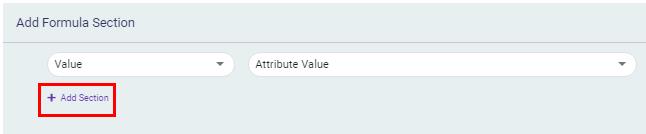
To add a space after the first entity selected, select Value as Text and add a space as shown below.

Thus, you can add a space after every entity, if required.
For the type of watch, the node names are categorized as ‘Analog’ and “Digital’. Select Value as Taxonomy Node Name and this will add the name of the node selected while applying the formula.

For the Dial Color, select Value as Attribute Value as the catalog has an attribute Dial Color whose value which will be different colors based on the dial color of the watch will be added as shown below.
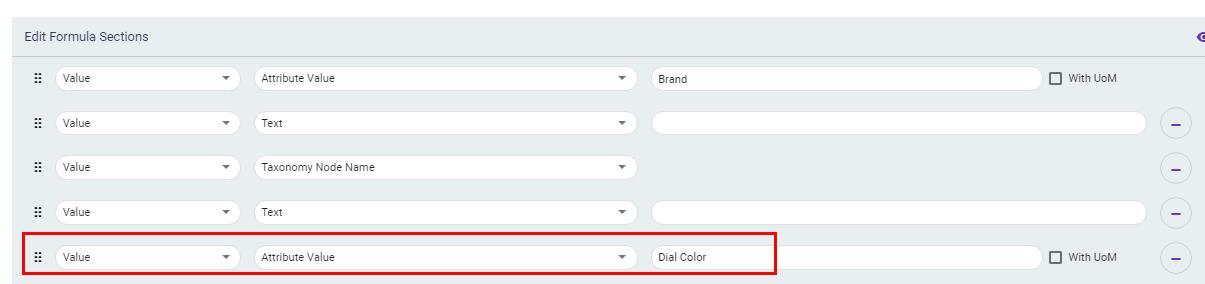
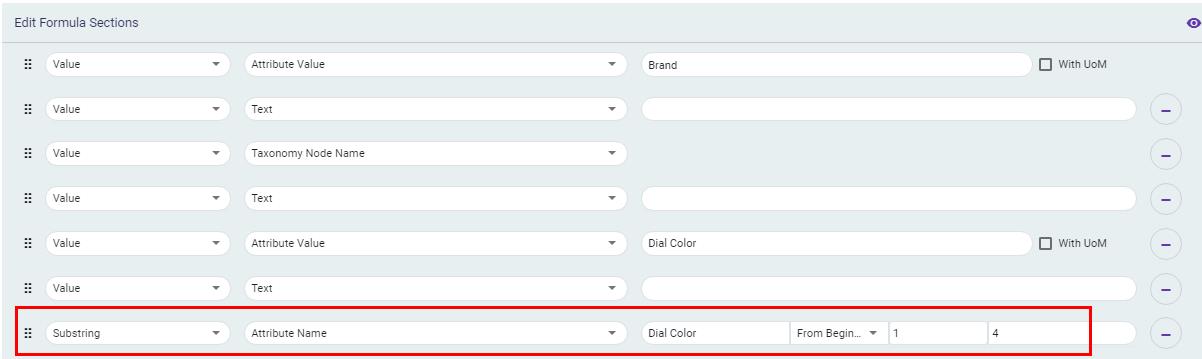
To add the word dial in the title, use the substring section to include the required word from the attribute name. Select Substring as Attribute Name and select the attribute as Dial Color.
Select From Beginning as Start Position should be ‘1’ and Number of Characters as ‘4’ as the word dial should be added as shown below.
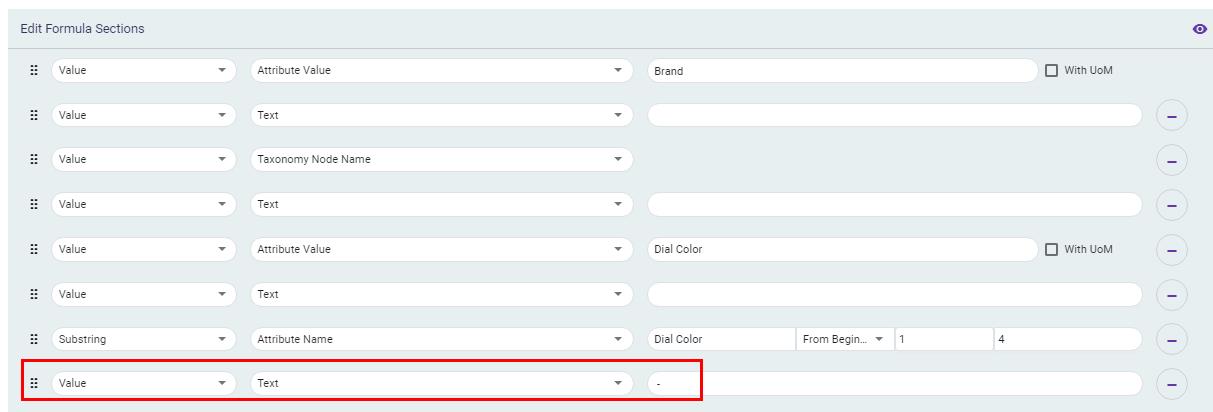
To add a hyphen before adding the SKU ID, select Value as Text and type – as shown below. If you want to add space before the hyphen, it can be added too.
To add the SKU ID, select Value as SKU ID and based on the SKU selected while applying the formula, the SKU ID will be added.
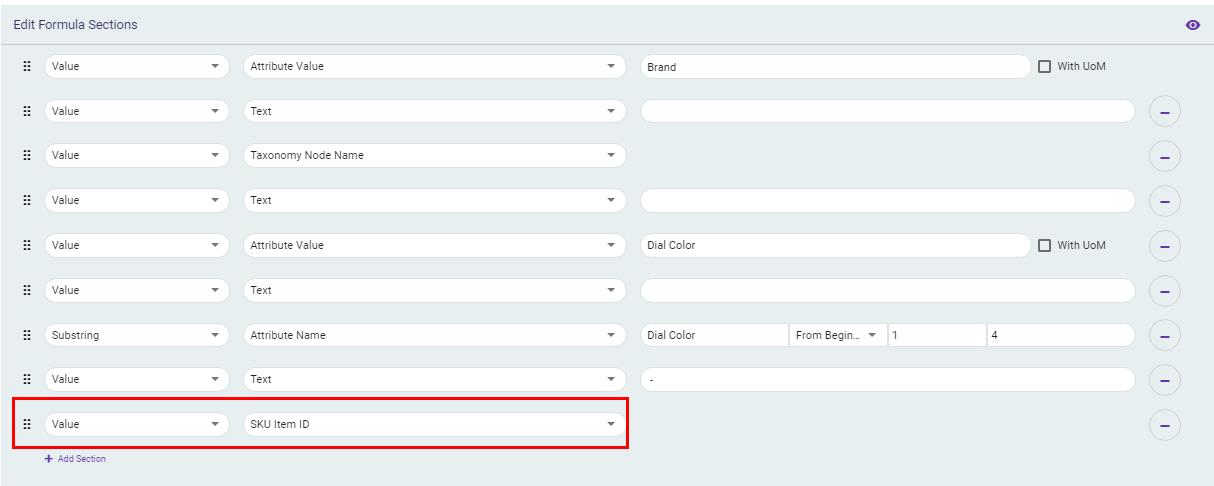
NOTE | Since there are multiple sections here, the values will be appended to each other as a continuous word if no spaces are provided while adding sections in the formula. For example, if a SKU title is generated without adding a space after each entity, the SKU title generated would be CasioAnalogBrownDial - Ana1458. Hence, if a space is needed between the values for each section, you need to add the text value as a single space. The SKU title will then be generated as Casio Analog Brown Dial - Ana1458. |
Click Next to proceed to Formula Target(s) section.
NOTE | The sequence in which the sections have been defined, the same sequence will be followed when the formula is applied to auto generate SKU Titles or derived attributes. However, you can change the order of the section by dragging any section using the |
 icon and move the sections to the required position. In this case, if we move the section on SKU ID from the last to the 1st position, the SKU ID will be the first value followed by the other sections.
Case 2: Let us assume that for a product Nut Bolt, a derived attribute Diameter is defined as the product has the radius values, but the diameter is not available. However, you can create a formula to generate values for the derived attribute Diameter using the radius values. The diameter is defined as 2*radius. Let us create a formula using arithmetic expressions.
Select Arithmetic Operation and the following is displayed:
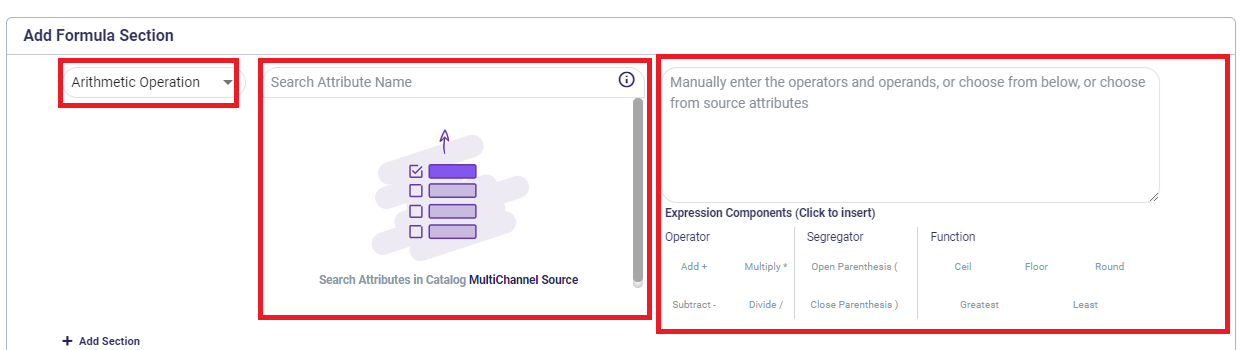
The formula to derive the diameter using radius is 2*r. In this case, it would be the attribute Radius.
Type the number 2 directly and then add the multiply operator as shown below.
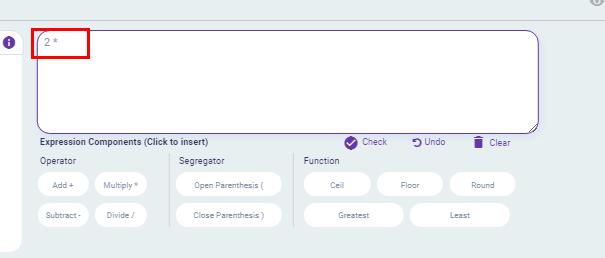
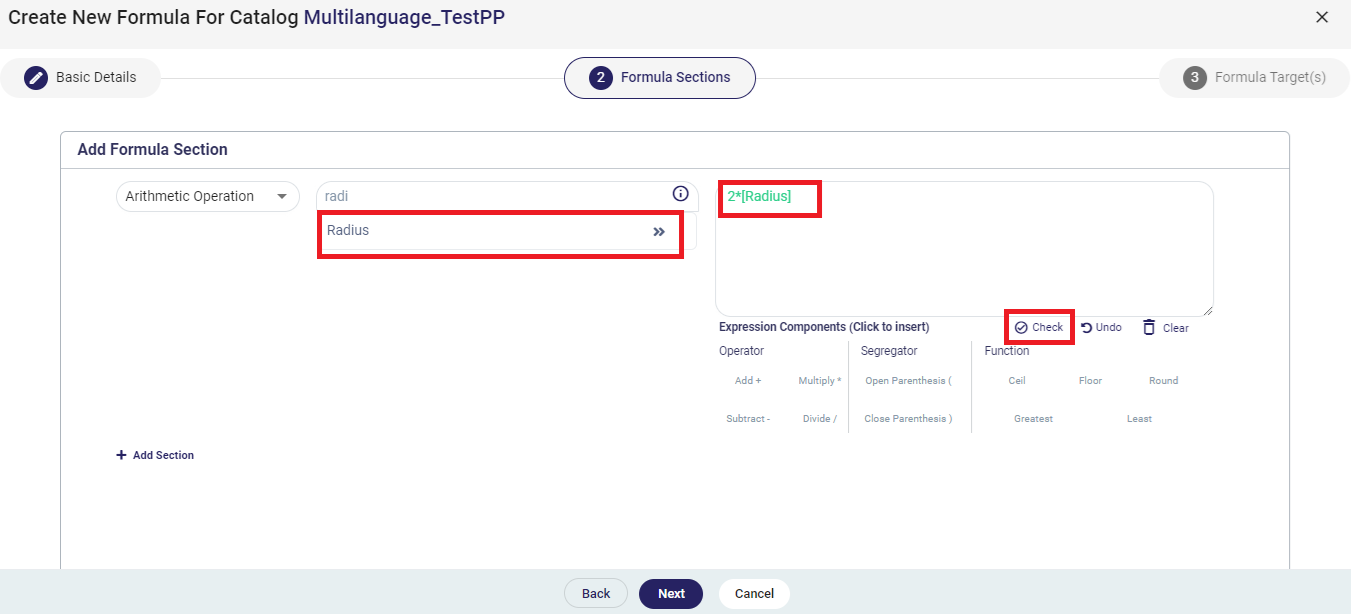
To add the attribute Radius, search the attribute present in the catalog and then click the Add
 icon to move the attribute in the expression section as shown below.
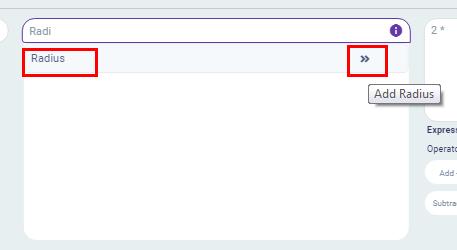
The attribute is now added in the expression section as shown below.
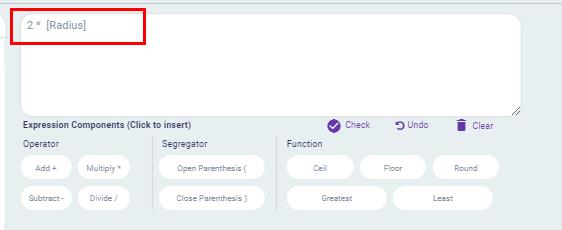
Click Check to verify if the expression created is correct then click Next to save and proceed.
On the Formula Target screen, select the option where you would like to apply the created formula from the drop-down options. For more information on each option refer to the links below:
Click Save Formula and confirm the Formula Tile and Description details.
Case 3. If you want to auto generate a SKU Item Id using the Amaze Internal Unique Sku Key.
Click +Create New Formula.
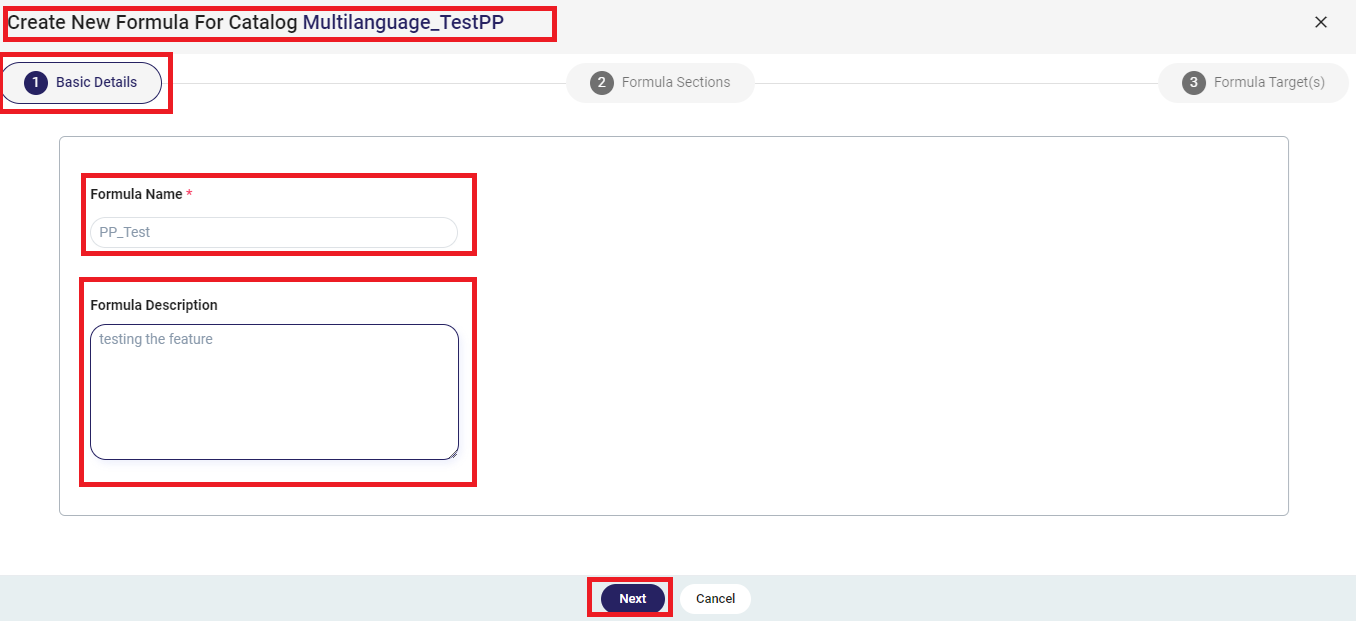
Enter the unique Formula Name.
For Formula Description, enter a summary or explanation of what the formula entails which helps you to understand the function of the formula.
Click Next to proceed to Formula Sections step.
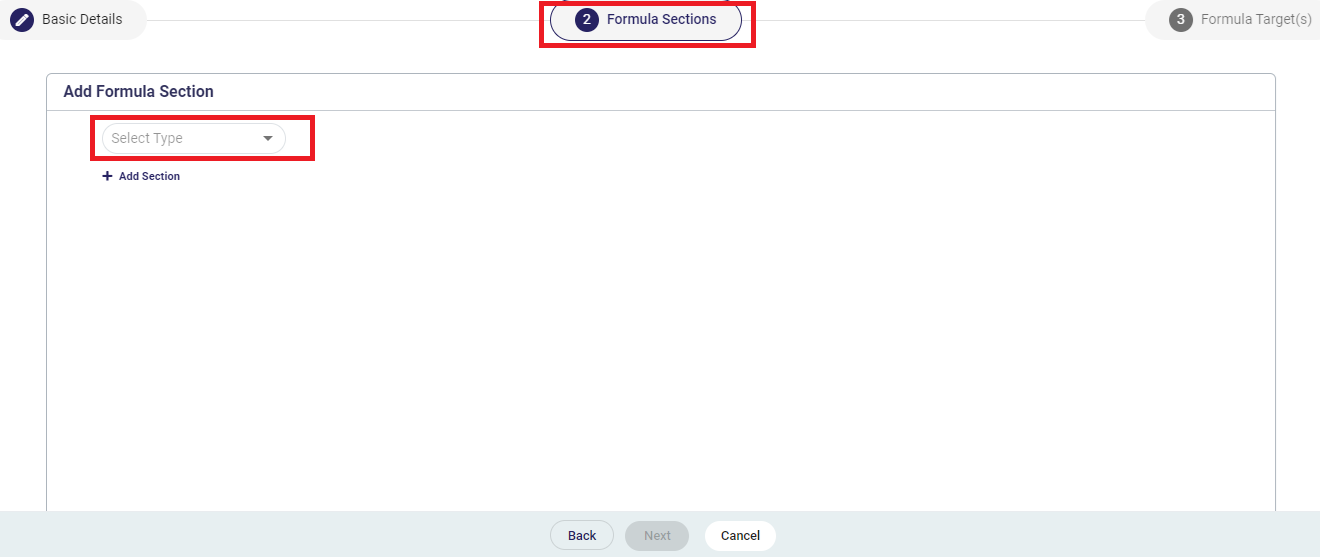
In the Add Formula section select the Type as Value and Argument Type as “Text”.
Enter the text you want to append the created SKU ID with for instance FCD.
In the Add Formula section select the Type as Value and Argument Type as “Amaze Internal Unique SKU Key”.
Check the Restrict the length of the SKU key checkbox.
When you select the Amaze Internal Unique SKU Key, you have the option to set the length of the SKU Key generated by the system.
Select the character length as “2” and enter the character for left padding as “0” as shown in the screenshot below.

Click Next to proceed to the final step which is Formula Target.
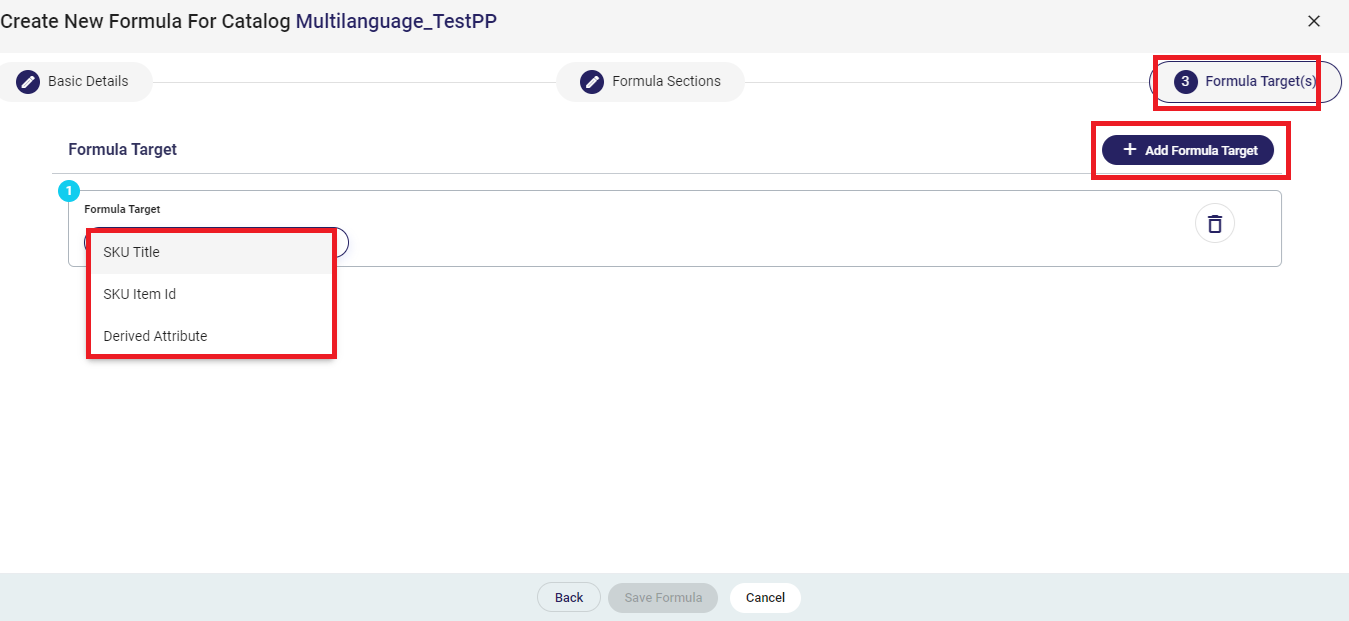
Click +Add Formula Target.
Select the SKU Item ID from the dropdown.
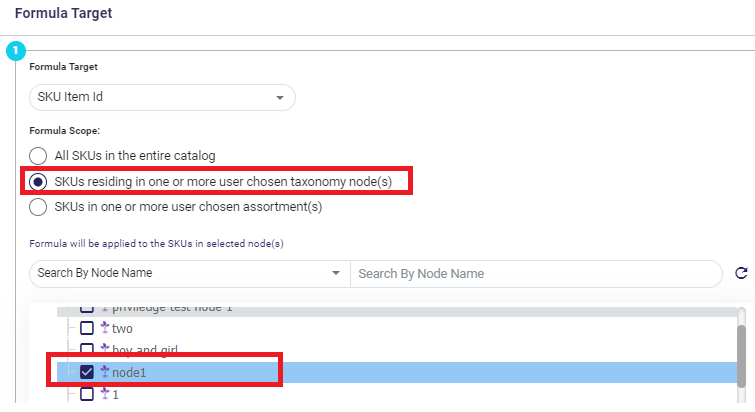
Under formula scope, select taxonomy node structure option the following pop up gets displayed where you can select all the SKUs from the specific taxonomy.
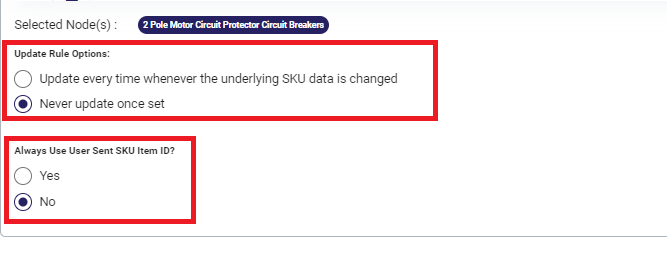
Under Update Rule Option section, select Never update once set option.
Under Always Use User Sent SKU Item ID?, select option No as shown in the screenshot.
Click Save Formula.
Save Formula pop up gets displayed.
Confirm the formula name and description and click Save Formula.
You’ll land on the Formula Master page.
Click on the Configure Catalog icon
 as shown in the below screenshot.
You’ll land on the Catalog page for which you have created catalog.

On the Catalog page, select the node for which you have applied the created formula. Here that is “node1” where you can see the funnel icon.

Click Add SKU, SKU Item ID as 2 and click Save.
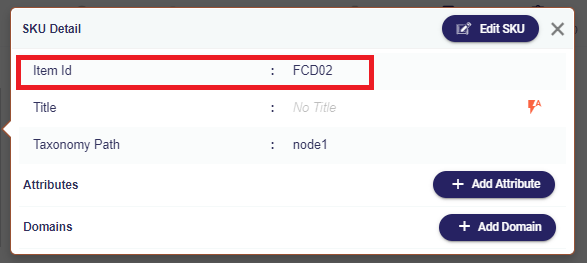
You’ll see the created SKU ID is FCD02 as per the applied formula.
The Add Formula Section displays the following options as shown below.
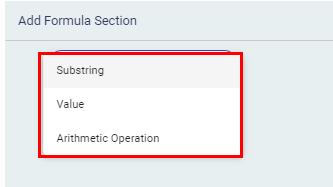
Substring
This includes multiple catalog entities which can be selected to be included in the formula being created and is ideal when you need to include a sequence of characters instead of the entire string. For example, an attribute Lens Color is available in the catalog and you need to add the word Color in the SKU title for certain SKUs. This option allows you to choose the number of characters along with the position from where the character should be counted for the formula.
Select Substring and the following entities which are part of the catalog can be added as a section as shown below.
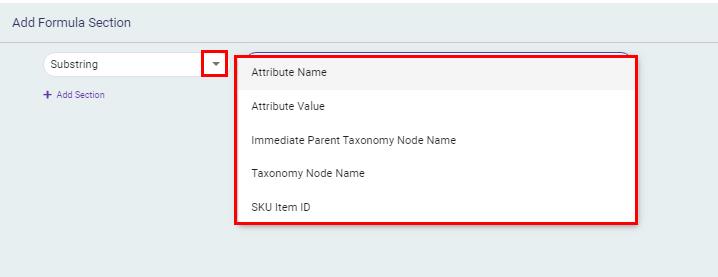
You need to provide the start position of the character, that is, whether the substring should include characters from the beginning or the end along with the number of characters that should be included in the substring. For example, let us select Attribute Name as the substring to be included in the formula being created. The following is displayed.

Type the attribute name. For example, let us add ‘Dial Width’ as shown below.

Select the position of the character, that is, whether the character should be selected from beginning or end. Let us select From Beginning as shown below.

Select the start position, that is, the position from where the character should start. Let us select ‘1’ which means for the attribute name ‘Dial Width’, it will start from the first character ‘D’ as shown below.

If you select 3, it will start from the 3rd character from the beginning, that is, ‘a’.
Lastly, you need to select the number of characters to be included. In this case, for the attribute ‘Dial Width’, if you need to include the word Dial in the formula, you should select the number of characters as ‘4’.
Thus, to include the word ‘Dial’ in the formula being created, the attribute name was selected as ‘Dial Width’, the position of the character is chosen to start from the beginning with position as 1 so that it starts from the first character and to include the word dial, the number of characters is chosen as 4.
Similarly, you can select other substrings based on the formula being created. The other 4 options are as follows:
Attribute Value – Here, to add the value of the attribute in the formula, you need to select the name of the attribute and choose the position and number of characters for the value as mentioned above. However, in case of attribute value, an option to include UoM is available. If the attribute has a UoM and it should be part of the formula, you can select it as shown below.

NOTE | The UoM will be counted as a value and will be appended to the string. If an attribute Price is selected which has value as 100 and UoM as $,and the position is selected as from beginning with start position as 1 and number of character as 2, the result will be ‘10$’ |
Immediate Parent Taxonomy Node Name – Here, you need to choose the position and number of characters for the parent node name. The parent node name will be selected based on the node chosen while applying the formula. For example, in the case of SKU title, a node Accessories > Watches > Analog is chosen. All SKUs in the node Analog are chosen and the SKU titles for all these SKUs will be generated based on the formula selected. If the formula has this section, the immediate parent taxonomy node for the Analog node will be Watches. Based on the position and number of characters selected, the node name Watches will be added in the SKU title.

Taxonomy Node Name – Here, you need to choose the position and number of characters for the node name. The node name will be selected based on the node chosen while applying the formula. For example, in the case of SKU title, a node Accessories > Watches > Analog is chosen. All SKUs in the node Analog are chosen and the SKU titles for all these SKUs will be generated based on the formula selected. If the formula has this section, the node name Analog will be added in the SKU title based on the position and number of characters selected.

SKU Item ID – Here, you need to choose the position and number of characters for the SKU Item ID to be added in the formula. The SKU Item ID will be selected based on the SKUs chosen while applying the formula. For example, a SKU with Item ID W1096L4 is selected, and the position is selected as from Beginning with ‘1’ and number of characters is 8, the entire Item ID W1096L4 will be included while applying the formula.
Value
This also includes multiple catalog entities which can be selected to be included in the formula being created and is ideal for adding the value of the entity directly. For example, an attribute Lens Color is available in the catalog and you need to add the values of this attribute in the SKU title for certain SKUs. The values could be Black, Brown, Grey and so on. Depending on the SKU selected, the value will be added in the SKU title automatically.
Select Value and the following entities which are part of the catalog can be added as a section as shown below.
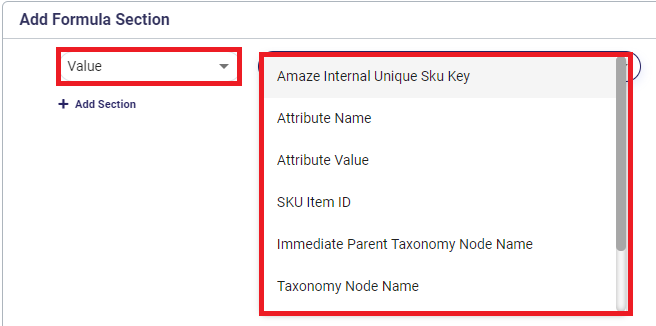
The following options are available:
Amaze Internal Unique SKU Key - Here, the SKU Item ID of the SKU will be system generated Item ID.
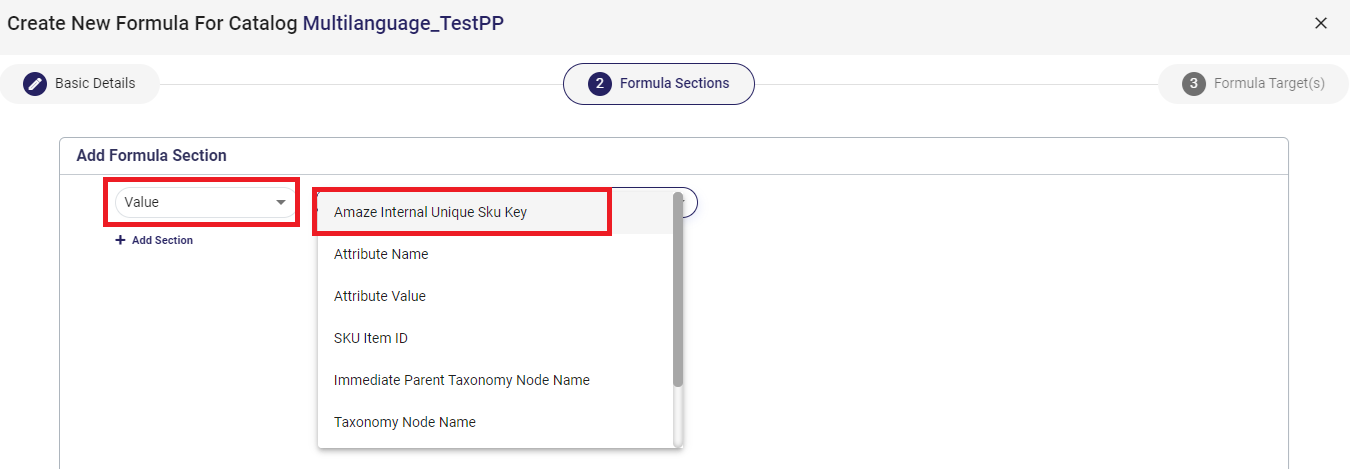
When you select the Amaze Internal Unique SKU Key, you have the option to set the length of the SKU Key generated by the system by choosing the Restrict the length of the SKU Key option. You can specify the desired length from the drop-down menu and enter the character for the left padding. If the selected length is greater than the current length of the Amaze Internal Unique SKU Key, the program will pad the SKU with the specified character to reach the total length entered by the user. Refer to the screenshot below for clarity.

For example, if the SKU with the Amaze Internal Unique SKU Key is 23001, and you have specified the length as 10 and choose left padding character as ‘P’, the output will be PPPPP23001.
Note: Importing files with empty SKU IDs was not allowed previously. However, with the implementation of Amaze Internal SKU Key we can now import files without SKU IDs for all file types except vertical files.
Supported types include horizontal Excel, delimited, BIF, user-defined custom import, hybrid import, POST SKU API, and modes like public API and FTP/SFTP.
When an import file lacks a SKU ID, it can be matched by item ID or custom attributes. If the item ID is blank and the import option is set to match by item ID, it will be treated as a new SKU and will need to go through a formula to generate the ID, based on the selected option under "Always use user-sent item ID” while creating the formula.
Attribute Name – Here, you select the attribute name and the name will be added as part of the formula as shown below.
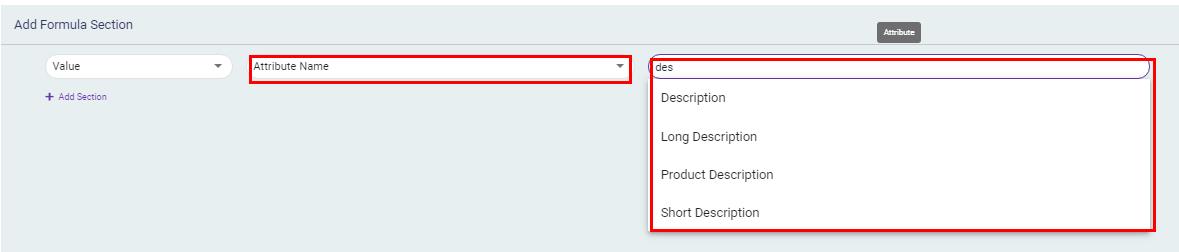
For example, if Description is selected, the word Description will be included while applying the formula.
Attribute Value – Here, you select the attribute name whose value should be included and the value will be added as part of the formula as shown below.

For example, if Dial Width is the attribute selected, the value could be 5mm, 10 mm and so on for different SKUs depending on the dial width. This value will be included while applying the formula. If the UoM is selected to be added, it will be counted as a value and will be appended to the string.
Immediate Parent Taxonomy Node Name – Here, the name of the parent node will be added as part of the formula as shown below.
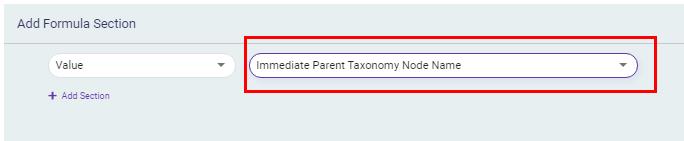
For example, if a node Accessories > Watches > Analog is chosen, the parent node for the node Analog, that is, Watches will be included while applying the formula.
Taxonomy Node Name – Here, the name of the node will be added as part of the formula as shown below.

For example, if a node Accessories > Watches > Analog is chosen, the node selected, that is, Analog will be included while applying the formula.
SKU Item ID – Here, the SKU Item ID of the SKU selected will be added as part of the formula as shown below.
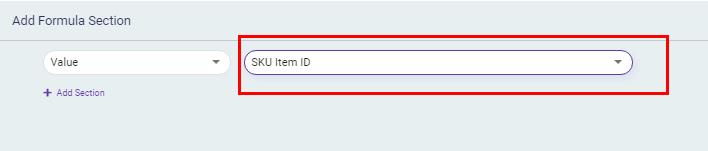
For example, if a SKU has SKU ID as B01FVP, this will be included while applying the formula.
Text – Here, you can add any characters or any special characters such as _, -, and so on which will be added as part of the formula as shown below.

For example, you need to include a hyphen in the formula, type the – in the Text field and it will be included while applying the formula.
Arithmetic Operation
This allows you to create arithmetic expressions using constant numbers or using attributes defined in the catalog having numeric datatype.
NOTE | You can only select attributes with data type as Integer or decimal while searching an attribute to be used in the formula. |
You can select the operators and functions available to create the required expressions. For example, you need to derive the diameter for a product such as Nut Bolt. However, you only have the radius available for this product. The formula to derive the diameter is (d= 2*r). Since you have the radius available, you can create an arithmetic operation by selecting the attribute from the catalog and applying the operators. If Diameter is defined as a derived attribute, the formula can be applied to this attribute which will automatically generate the value based on the radius defined for the SKUs.
Select Arithmetic Operation and the following components are available for creating an arithmetic expression.
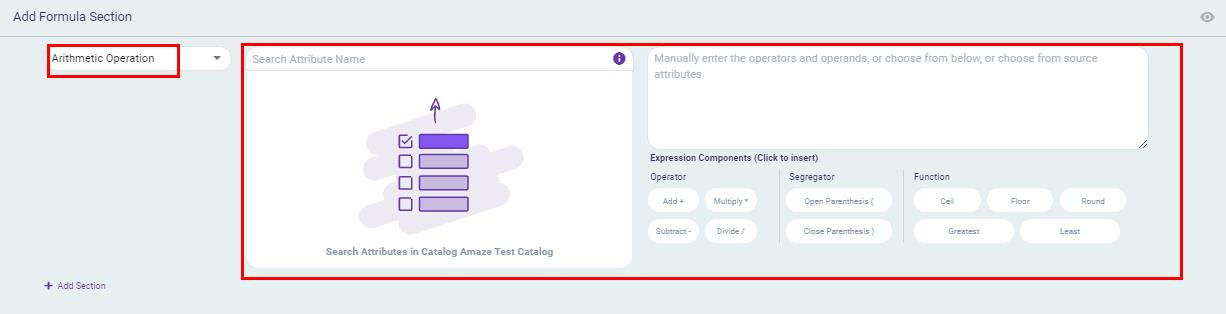
You can use the operators add, subtract, multiply and divide as needed for creating the expressions. Also, you can select the attributes defined in the catalog to be used in the expressions being created.
In case of functions in arithmetic operations, the following options are available:
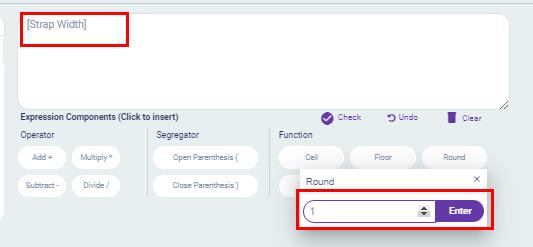
Round option refers to the rounding of decimal numbers to a certain degree of accuracy. This will be disabled initially. You need to select a part or entire expression for which round up or round down needs to be performed. Once selected, the Round option will be activated. Click the Round option to enter the decimal places which will round up or round down and the formula will be applied in the arithmetic expression accordingly.
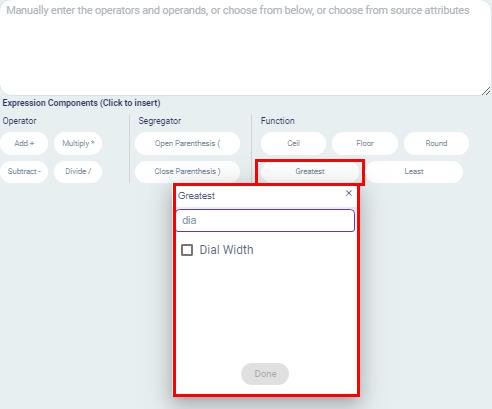
For Greater or Least functions, you need to select the attributes which will be compared and based on the 2 mentioned functions greater or least among the values will be selected. There needs to be at least 2 attributes having numeric value selected for this function to work. It cannot have a single attribute selected.
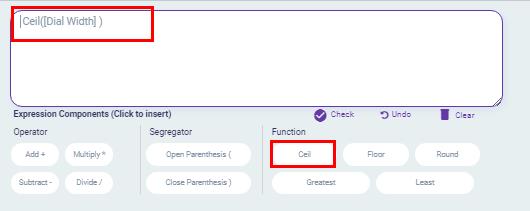
For Ceil and Floor functions, you need to select a part or entire expression for which ceil or floor value needs to be calculated. Once selected, these options will be activated. Click the Ceil option to round up the number to the nearest integer above the current value passed and click the Floor option to round up the number to the nearest integer below the current value passed. For example, if the value present is 2.3, the Ceil option will round it up as 3 whereas the Floor option will round it up as 2.